Windows Voice Access (or the older Windows Speech Recognition): the system-level dictation built into Windows, triggered with Win + H.
Voice Typing vs Built-In
Dictation: Windows, Mac,
and Google Docs Compared
Every major platform now ships with some form of dictation built in. Windows has Voice Access. Mac has Dictation. Google Docs has its own Voice Typing tool baked into the toolbar. On paper, that should be enough. You press a shortcut, you talk, words appear.
3×
Faster than typing
99%
Uptime guaranteed
10k+
Active users
On This Page
In practice, most people who try built-in dictation for real work (emails, reports, client notes, long-form writing) give up on it within a week. The gap between "it can technically transcribe speech" and "it's actually usable for daily work" is where AI voice typing tools like Zero Typing come in.
This post breaks down how the built-in dictation tools on Windows, Mac, and Google Docs actually compare to a dedicated AI voice typing app, so you can see exactly where each one holds up and where it doesn't.
What Counts as "Built-In Dictation"?
Before comparing anything, it helps to separate the three tools people usually mean when they say "built-in dictation":
macOS Dictation: Apple's built-in speech-to-text, available system-wide via a keyboard shortcut or the Fn key.
Google Docs Voice Typing: found under Tools > Voice typing, and limited to the Docs environment itself.
All three share the same basic limitation: they were built to transcribe, not to help you write. That distinction matters more than it sounds.
What Makes AI Voice Typing Different
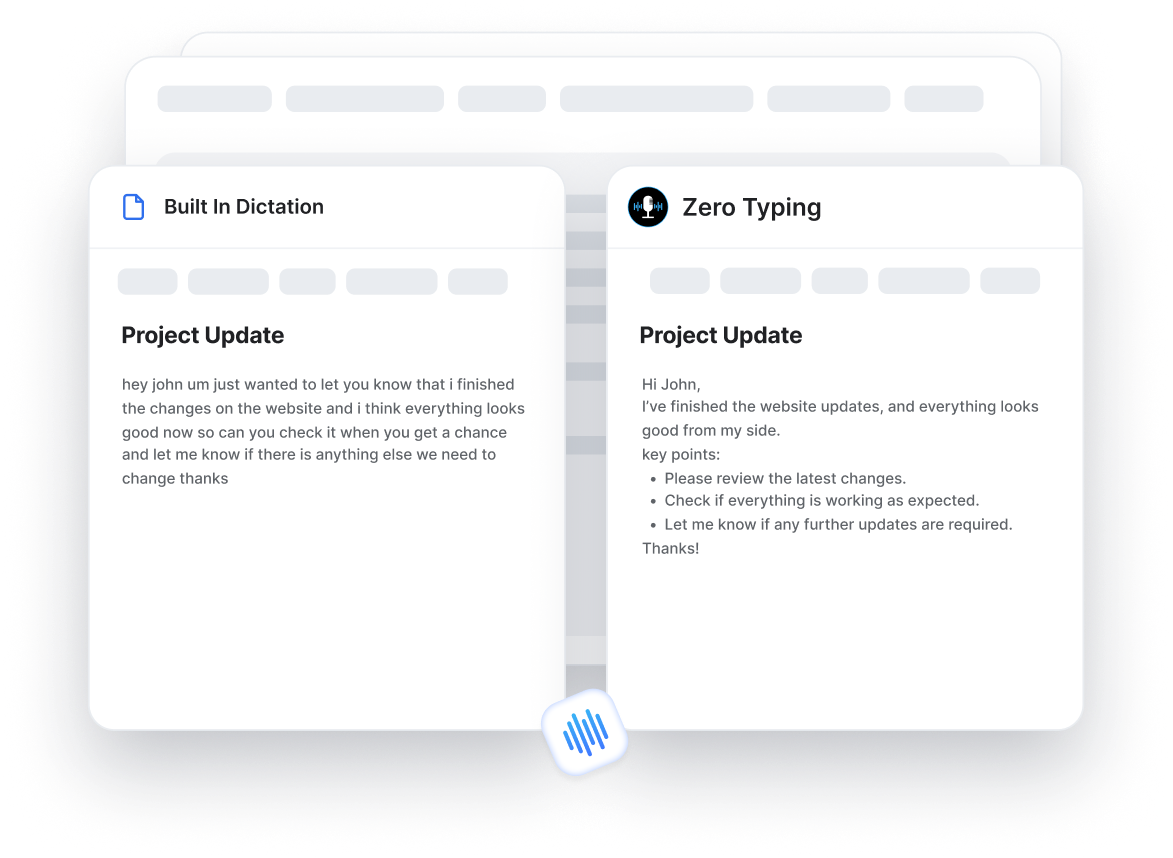
An AI voice typing tool sits on top of your operating system rather than inside one app. It works the same way whether you're writing an email in Gmail, dropping notes into Slack, drafting a doc in Google Docs, or prompting an AI chat tool. Instead of just converting audio to text, it applies a language model to clean up filler words, fix grammar, match a tone you specify, and format the output for whatever you're writing.
Zero Typing, for example, works across Google Docs, Gmail, Slack, and AI chat tools like ChatGPT, Claude, and Gemini, with a single dictation flow rather than a different tool for each app. It also includes a Personal Dictionary for names, technical terms, and custom spellings, automatic language detection, and prompt-based rewriting (Writing Tone, Fix Grammar, Transcript Only, Ask GPT, and custom prompts) so the output is publish-ready rather than a raw transcript you still have to edit by hand.
That's the core difference: built-in dictation gives you a transcript. AI voice typing gives you a finished draft.
Windows Dictation vs AI Voice Typing
Works across apps
Windows Voice Access
Yes, but accuracy varies a lot by app
AI Voice Typing (e.g. Zero Typing)
Yes, consistent experience everywhere
Punctuation handling
Windows Voice Access
Often requires spoken commands ("period," "comma")
AI Voice Typing (e.g. Zero Typing)
Inferred automatically from speech
Custom vocabulary
Windows Voice Access
Limited, manual correction required
AI Voice Typing (e.g. Zero Typing)
Personal Dictionary learns names, jargon, spellings
Tone or style control
Windows Voice Access
None
AI Voice Typing (e.g. Zero Typing)
Prompt-based rewriting for tone, grammar, format
Setup
Windows Voice Access
Built in, no install
AI Voice Typing (e.g. Zero Typing)
Lightweight download
Offline use
Windows Voice Access
Yes
AI Voice Typing (e.g. Zero Typing)
Varies by tool
| Feature | Windows Voice Access | AI Voice Typing (e.g. Zero Typing) |
|---|---|---|
| Works across apps | Yes, but accuracy varies a lot by app | Yes, consistent experience everywhere |
| Punctuation handling | Often requires spoken commands ("period," "comma") | Inferred automatically from speech |
| Custom vocabulary | Limited, manual correction required | Personal Dictionary learns names, jargon, spellings |
| Tone or style control | None | Prompt-based rewriting for tone, grammar, format |
| Setup | Built in, no install | Lightweight download |
| Offline use | Yes | Varies by tool |
Windows Voice Access is genuinely useful for accessibility and basic hands-free navigation. Where it struggles is long-form dictation for actual writing. Spoken punctuation commands break your flow, and there's no way to tell it "make this sound more formal" or "clean up the filler words." You get a rough transcript, then you're back to editing it manually anyway.
Mac Dictation vs AI Voice Typing
Mac Dictation is fast to trigger and handles short bursts of speech reasonably well. It falls apart in the same place Windows does: longer sessions, technical vocabulary, and anything that needs restructuring rather than just transcribing.
There's also no persistent memory of how you spell a client's name, a product term, or industry shorthand. You correct it once, and it forgets by the next sentence. An AI voice typing tool with a Personal Dictionary only needs that correction once, and it stays consistent everywhere you dictate afterward, not just in one document.
For professionals who dictate case notes, client updates, or technical content regularly (healthcare, law, content creation are common cases), that repeated correction adds up to real time lost every week.
Google Docs Voice Typing Comparison
Google Docs Voice Typing is the most limited of the three simply because of where it lives: inside one app. It doesn't help if you're dictating a Slack message, an email in Gmail, or a prompt into an AI chat tool. Every time you switch context, you're back to typing or hunting for another dictation method.
If most of your writing happens directly, our Google Docs voice typing guide walks through getting AI-powered dictation set up specifically for that workflow, including how it compares to the native Tools > Voice typing option.
Accuracy, Speed, and the Editing Gap
The accuracy numbers on built-in dictation tools have genuinely improved over the years. That's not really where the gap is anymore. The gap is in what happens after the words land on the page.
Built-in dictation stops at transcription. It doesn't know if you wanted a bullet list, a formal email, or a casual Slack reply. Every dictation session still ends with a manual editing pass: fixing "um"s and false starts, adding punctuation the tool missed, reformatting run-on sentences into something readable.
AI voice typing tools close that gap by applying rewriting on top of transcription. Zero Typing claims roughly 5x faster efficiency versus typing manually, largely because that editing pass is handled automatically rather than left to you. That's the actual time savings people notice: not faster transcription, but skipping the cleanup entirely.
When Built-In Dictation Is Enough
Built-in dictation is a reasonable choice if:
- You dictate short, simple messages occasionally
- You need basic accessibility support for hands-free typing
- You don't need the output to match a specific tone or format
- You're comfortable doing a manual edit pass every time
When You Need AI Voice Typing Instead
An AI voice typing tool makes more sense if:
- You write across multiple apps daily (email, docs, chat, AI tools)
- You use consistent names, terms, or jargon that generic dictation keeps misspelling
- You want dictated text to come out publish-ready, not just transcribed
- You're dictating regularly enough that a few minutes of cleanup per message adds up to hours per week
If that sounds like your day, it's worth reading how AI voice typing actually works under the hood to see what's happening beyond simple transcription.
Try It Instead of Reading About It
Zero Typing is free to start: 15 minutes of transcription per week, Personal Dictionary included, no credit card required.
Ready for Unlimited Dictation?
ZT Pro unlocks unlimited words, unlimited audio transcription, and custom prompt creation for $8/month.
Frequently Asked Questions
Raw transcription accuracy between native OS dictation and AI voice typing tools is often close. The bigger difference is what happens after transcription: AI voice typing tools clean up grammar, punctuation, and phrasing automatically, so the output needs far less manual editing.
Yes, but there's little reason to. An AI voice typing tool that works across Google Docs, Gmail, Slack, and other apps replaces the need for an app-specific tool like Google Docs Voice Typing.
Windows Voice Access and Mac Dictation generally support offline use for basic transcription. Availability of offline mode varies by AI voice typing tool, so check the specific app's documentation if that's a requirement for your workflow.
With a Personal Dictionary feature, yes. You correct a name or term once, and the tool remembers the correct spelling going forward, rather than requiring the same correction every session the way built-in dictation typically does.
Yes. Zero Typing offers a free ZT Basic plan with 15 minutes of audio transcription per week, Personal Dictionary access, and basic prompt selection, with no credit card required to start.
Yes. Zero Typing supports custom prompts, letting you set a structure or style that is applied automatically each time you dictate, rather than repeating the same instructions every time.
It depends on the tool. Zero Typing offers both native downloads (Mac, Windows via .msi, Android) and a web app, so you can choose based on whether you want a desktop-integrated experience or browser access.
Sign up for our newsletter and join the Zero Typing AI community.

This site is protected by reCAPTCHA and the Google Privacy Policy and Terms of Service apply.